HMI - GOT2000/3000 Connect and communicate with Siemens PLC

This Article will guide you how to setup communication with Siemens plc in a few steps. Not go deeply inside how to make a new project both of the softwares only focus on the settings. There's no tag communication between Siemens PLC and HMI. Communication is based in DB "offset" addresses
1. GT Designer setup
If you start a new project in the communication wizard window select Siemens as manufacture and if you would like to communicate for example S7-1200 or S7-1500 choose SIEMENS OP (ethernet) for the controller type.
In GT Designer please search Controller settings in the System Tab, and setup IP address of the controller and port number 102.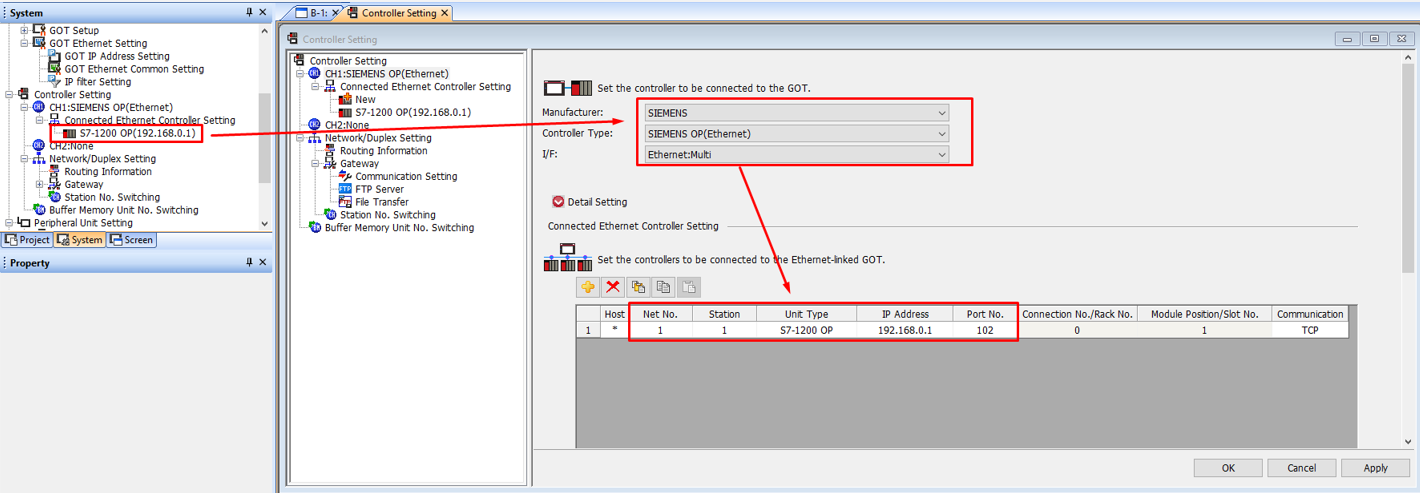
2. TIA Portal setup
Setup your plc IP address the same as you already set in GT designer.
Then enable PUT/GET communication from remote partner from the protection & securtiy of the PLC general settings.
Preapare a DB like in the below picture. Then it's properties Attributes unthick the Optimzed block access usage. Compile the project. After that the offset of the DB tags will be autmatically shown.
You can not modify it. So keep in mind to use temp or dummy bits/bytes for further usage and try to start every label/tag with even number. So if you use Byte type add after it a temp byte variable because GOT HMI handling 16bit devices mostly.
Further description of connection and Settable device range you can read in the: GOT2000 Series Connection Manual (Non-Mitsubishi Electric Products 2) For GT Works3 Version1.