This article explains how to configure an Arc Embedded sensor running on iQ-R Series C Intelligent Function Module RD55UP12-V. It also shows how to connect Arc Embedded with Guardian and Vantage.
Arc is a host-based sensor by Nozomi Networks that detects and defends against malicious or compromised endpoints, and
insider attacks. Arc Embedded, a special version of Arc, can be embedded
directly on specific operational technology (OT) devices. In case of Mitsubishi
Electric products Arc Embedded is compatible, e.g., with a RD55UP12-V
intelligent function module.
It is important to remember that Arc sensor on its own doesn't provide any analytics or dashboards. It gathers data from the network which needs to be delivered to Guardian/Vantage for analysis.
1. Licensing
Before Arc
Embedded is deployed and used, the required licenses must be installed. The
procedure for installing Arc licenses depends on the existing installation
(Guardian, Vantage or CMC). Arc and Arc Embedded
require separate licenses.
To install
a license, the administration page must be accessed via the gear icon in the
top navigation bar. From there, selecting “Updates and licenses” in the “System”
section on the left-hand side opens the page where licenses can be installed.
The “Set
new license” button opens the dialog shown below for entering and applying a
license key.
2. Hardware configuration
2.1. Setup
The RD55UP12-V module provides
two network interfaces. Arc Embedded uses one interface to connect to an
upstream sensor, such as Guardian. The second interface should ideally be used
for monitoring purposes and connected to a switch SPAN port to capture all
traffic from the CPU module. This configuration delivers optimal performance,
especially when Smart Polling is enabled.
In network configurations where only Endpoint monitoring is important for Arc (when the SPAN port is connected to a Guardian, for example), the second port may not be used. Both network interfaces of RD55UP12-V need to have their IP addresses properly set in the GX Works3 project running on the iQ-R PLC for correct network access.
If the system includes
additional sensors, such as a Guardian, these devices should be updated to the
latest software version. Software updates can be applied via the administration
page by selecting “Operations” and then “Software Update”.
2.2. RD55UP12-V preparation
In order to deploy Arc Embedded on the RD55UP12-V module, a Linux image needs to be configured on it first. The procedure below describes all the necessary steps.
 More information can be found in the MELSEC iQ-R C intelligent function module Linux Startup manual attached to this article as a PDF file.
2. Download latest Linux Debian 12 Image:
This will provide a .zip archive like "RD55UP12-V_v.3.00.07_Debian12.zip" (exact name may be different depending on version updates).
a. Extract all files into a subdirectory and run ddwin.exe as ADMIN
b. Install ddi file onto a 4GB SD-Card (the card can be bigger, but it will be formatted to this size)
c. Insert SD-Card to RD55UP12-V module and reboot
4. Download Linux File manager WinSCP: https://winscp.net/eng/download.php. Install in "commander" mode (two windows to copy/paste files from PC to RD55UP12-V). You can also use another (S)FTP software such as FileZilla etc. 5. Connect to the RD55UP12-V module using a straight Ethernet cable or a LAN using WinSCP. Use login User name "root" and "password"
6. Arc Embedded can then be manually deployed on the RD55UP12-V by following the procedure described below.
3. Arc package download
Once all licenses have been updated and the required software bundles have been installed, the Arc installer can be downloaded from the Guardian/Vantage web GUI or from the Nozomi Networks website. Choose on of the options below depending on your configuration.
We recommend download from Guardian/Vantage if possible since it fills some necessary information about Guardian/Vantage for Arc automatically - if the package is downloaded from the website, manual adjustments need to be done in a JSON configuration file as described in chapter 5.
3.1. Download from Guardian
In Guardian, go to Sensors -> Download Arc. For installation on the RD55UP12 V, the “Linux (for MELCO) Arm 32 bit” archive must be selected.
3.2. Download from Vantage
In the Vantage navigation bar go to Sensors, then click Add .
This will open the Make connections window, where you need to select Arc and download the “Arm 32 bit (for MELCO)” archive:
If you select the Configure Arc bundle option before the download, you can adjust what exactly you want to be monitored. By default full Endpoint and Network sensor features are active.
3.3. Download from the Nozomi Networks support portal
4. Deployment
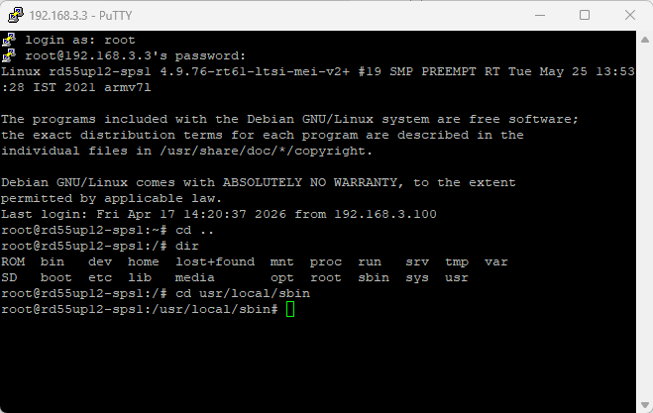
To access the RD55UP12-V, a secure shell (SSH) client such as PuTTY can be used. The archive “Linux (for MELCO) Arm 32-bit” must be extracted and copied to the directory /usr/local/sbin/arc. If this directory does not exist, it must be created beforehand. WinSCP can be used to conveniently transfer the files to the RD55UP12-V.
Example of SSH access and directory navigation using PuTTY:
The following shell commands are supported by the Arc Embedded application:
Command | Function | Note |
./arc-linux-arm install
| Install
Arc as an OS-service, ready to be started. On reboot Arc is automatically
started. | Requires
admin rights |
./arc-linux-arm start
| Start the
Arc service. | - |
./arc-linux-arm stop
| Stop the
Arc service. | - |
./arc-linux-arm restart
| Restart
the Arc service. | - |
./arc-linux-arm
  uninstall
| Uninstall
Arc. | Requires
admin rights |
./arc-linux-arm version
| Return
the Arc version. | - |
./arc-linux-arm status
| Return
the Arc service status. | - |
./arc-linux-arm
  install_dependencies
| Trigger
the dependencies installation. | Requires
admin rights |
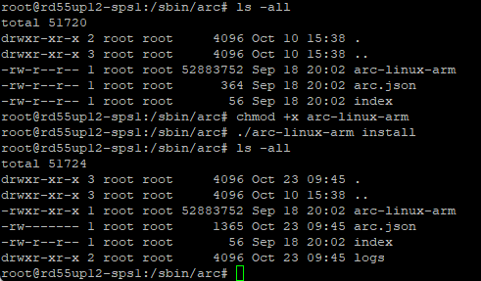
Arc Embedded can be registered as a service (daemon) using the command “./arc-linux-arm install”, assuming the package name is “arc-linux-arm”. Before installation, it must be verified that the file is executable using “ls -all”. If required, execute permissions can be added with “chmod +x arc-linux-arm”.
For the iQ R series, the additional library package “libmelco” is required. If the package cannot be downloaded via the update service, it must be installed manually. The file “libmelco.bin” is included in the “Linux (for MELCO) Arm 32 bit” archive and must be extracted and copied to the directory /usr/local/sbin/arc. The command “./arc-linux-arm install_libmelco” extracts the file “libmelco.so” from the encrypted “libmelco.bin” and installs it in /usr/local/lib, equivalent to an installation via the update service.
Note that once Arc Embedded gains access to the update service, the manually installed “libmelco” package will be replaced by the latest available version.
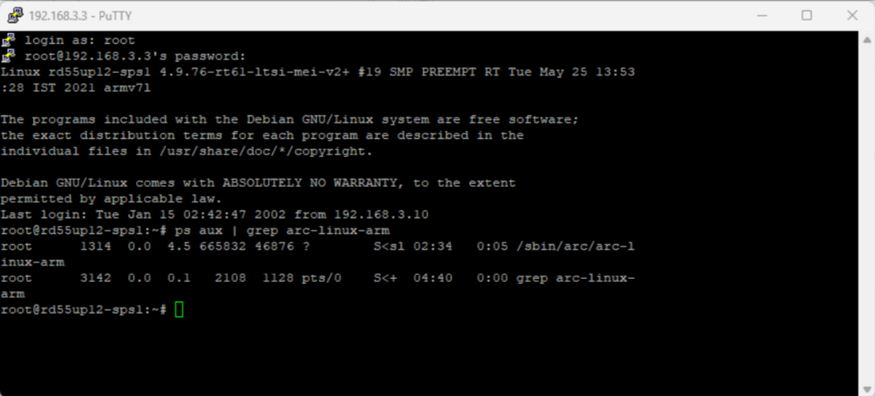
Arc can be started using the command “./arc-linux-arm start”. After startup, the Arc sensor runs from /usr/local/sbin/arc, and the collected data can be viewed in Guardian or Vantage.
With “ps aux | grep arc-linux-arm” it can be manually verified if the application is running.
5. Connecting Arc to Guardian/Vantage
When the Arc service starts, it must know what the IP and Sync Token of the Guardian or Vantage is which it should connect to. If you downloaded the Arc package from the Guardian or Vantage Sensors page, then it will be pre-configured with your connection info. If you downloaded the package from the website, complete the steps below:
1. Go to the RD55UP12-V and get the Sensor ID from the /usr/local/sbin/arc/arc.json file. It is what’s shown at identity.uuid in the JSON.
2. Go to Vantage —> Sensors —> Add —> Choose Arc —> Enter your Sensor ID —> It will give you the connection URL and Token
3. Go back to the RD55UP12-V, edit the /usr/local/sbin/arc/arc.json file, and put the Vantage URL in the connection.endpoint key, and the sync token at the connection.token key. You can also adjust other settings (such as the proxy server) in the same file.
Once the connection from Arc to Guardian or Vantage is working, you can configure all the rest from Guardian/Vantage.
Restart Arc (using the ./arc-linux-arm restart command) and check the Sensors list in Guardian/Vantage - status of your configured Arc Embedded should be visible as Active. Allow your sensor from its menu if necessary to receive data.
What ports need to be open for the Arc-Vantage or Arc-Guardian connection?
Arc connects up to Guardian or Vantage on HTTPS
port 443. So all you need to allow is outbound, from Arc, to
Guardian/Vantage. If you are putting a firewall rule specifically for
Vantage, ideally you can do a firewall rule based on the URL, because the
Vantage IP addresses can change.

